Step-by-Step Guide:
Step 1: Create the Base Color
- Open Adobe Illustrator and create a new document (e.g., 1920×1080 pixels).
- Create a new layer (Layer 1) and name it “Base Color”.
- Select the Rectangle Tool (M) and draw a rectangle that covers the entire canvas.
- Set the fill color to a dark, textured gray to simulate asphalt or concrete (e.g., #2F2F2F). No stroke is needed.
Step 2: Add Texture to the Base Color
- With the rectangle selected, go to Effect > Texture > Grain.
- In the Grain options, set:
- Intensity: 50
- Contrast: 50
- Grain Type: Stippled
- Click OK to apply the texture.
Step 3: Find and Install Rough Brushes
- Open the Brushes panel (Window > Brushes).
- Click on the Brush Libraries Menu (bottom-left icon in the Brushes panel) and select Artistic > Chalk/Charcoal/Pencil.
- Explore the different brushes available and add the ones that look like chalk to your Brushes panel by clicking on them.
Step 4: Start Drawing
- Create a new layer above the “Base Color” layer and name it “Drawing”.
- Select a rough brush from the Brushes panel.
- Choose a color that mimics chalk (e.g., white, yellow, blue, pink). Use the Color Picker to adjust the color to your liking.
- Select the Paintbrush Tool (B) and start drawing on the “Drawing” layer.
- Experiment with brush size, direction, and overlap:
- Change the brush size using the Brush Options (double-click the brush in the Brushes panel) or adjust the stroke weight in the top control panel.
- Change direction by varying your strokes.
- Overlap strokes to create a more authentic chalk look.
Step 5: Add Variations and Details
- Change colors frequently to add interest and mimic the use of different chalk colors.
- Adjust brush size to add details or fill larger areas.
- Use different brushes to vary the texture and look of your strokes.
Step 6: Final Touches
- Add highlights and shadows to give your drawing depth. Use lighter colors for highlights and slightly darker shades for shadows.
- Blend strokes where necessary using the Blur tool (located under the Width Tool in the toolbar) to soften harsh edges.
Tips for a Realistic Chalk Effect:
- Use multiple layers to separate different elements of your drawing.
- Apply a slight blur to some strokes to mimic the softness of real chalk.
- Use opacity adjustments to create layering effects, making some strokes more translucent.
Example Visualization:
- Base Color Layer: Dark gray rectangle with a grain texture.
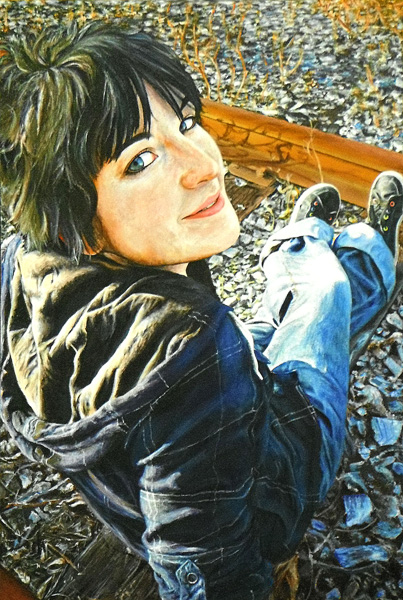
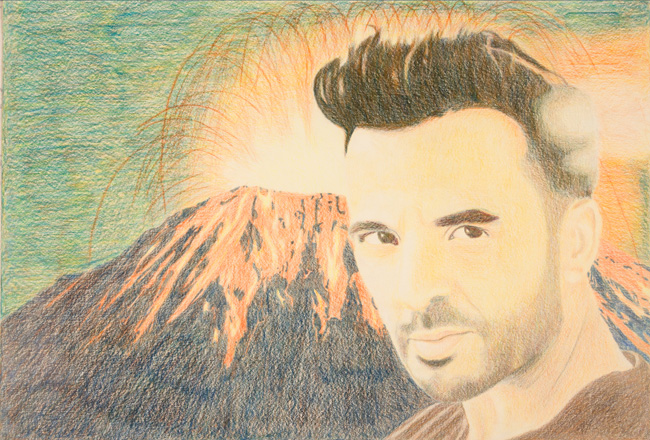
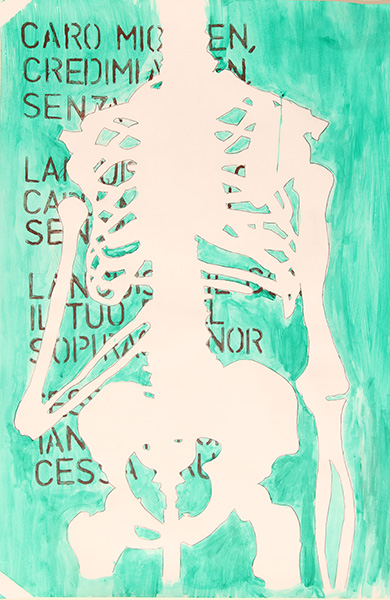
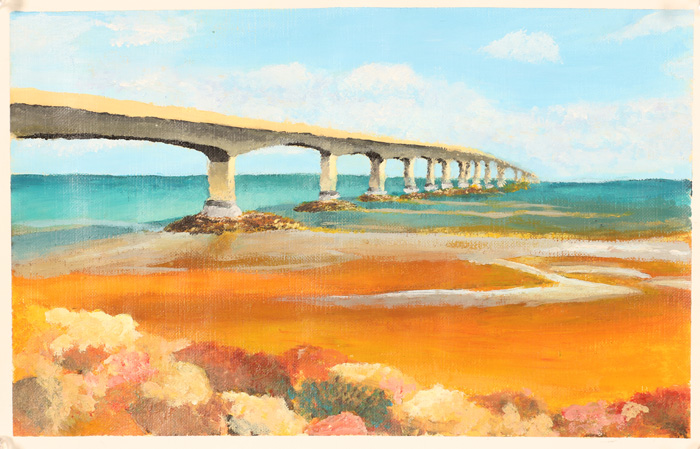
- Drawing Layer: Colorful strokes of varying sizes and textures simulating chalk drawings.
.